Filmtools
Filmmakers go-to destination for pre-production, production & post production equipment!
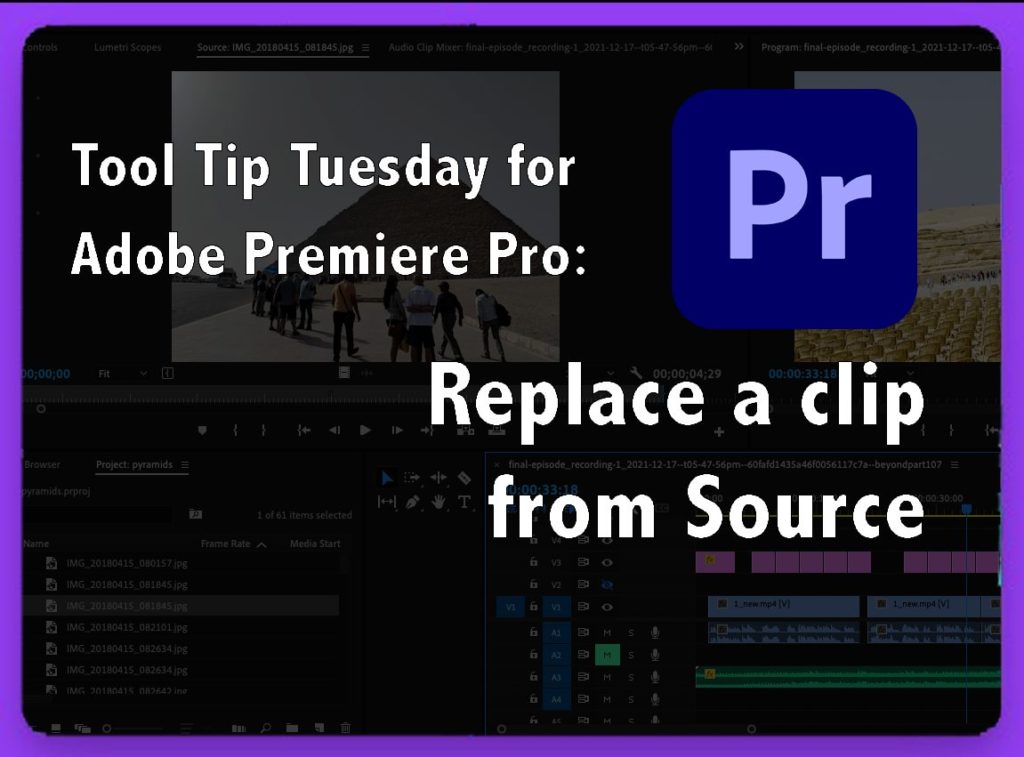
Shop NowTL;DR: Superpower Replace from Source by load multiple alternates into the Source Monitor, cycle through them with Shift+2, then hit your Replace from Source shortcut. You’re now auditioning different clips on your timeline as fast as you can think.
Welcome to Tool Tip Tuesday for Adobe Premiere Pro on ProVideo Coalition

I love overlooked features. Replace from Source looks like alt-dragging a clip—replacing your existing clip on the timeline. We’re going to do better.
Practical need
I’m constantly trying different versions on a timeline. It might be different music cues, Different reads of the same line, different takes. Especially when the client is in the room (virtually or not). I need a fast way to swap clips in and out without disrupting my timeline.
Replace from Source.
Right-click any clip on your timeline, and you’ll see a Replace menu with three options: Replace from Bin (covered last week), Replace from Source (Today), and Replace from Source with Match Frame.

Map this to the keyboard. Pick keys that make sense to you. The R helps me mentally remember Replace, so it’ll be a variation of the letter R. Or if you’ve got a control surface like a Stream Deck or a Mx Creative Console (formerly Loupedeck)- this is a reason for a macro!
Swapping lots of clips quickly – Combine it with Shift+2 – Swap source monitor clips
The default keyboard mapping has Shift+2 to load the source monitor. If you press it again, you’ll cycle to the next clip in the source monitor that you’ve previously loaded.
Workflow: Grab a bunch of alternative takes or alternative B-roll and drag them all to the source monitor. Now Shift+2 cycles between them. Shift+3 activates the timeline. Then Replace from Source. Play it back, Shift+2.

This is ridiculously fast for seeing what a variety of alternates looks like on the timeline. You’re cycling and replacing in seconds.
Last thoughts
Replace from Source becomes a quick replacement solution, especially when you combine it with Premiere’s source monitor cycling; you’ve turned a basic replace function into a rapid auditioning system. Like pressing different keys on a piano and making a chord. This is a chord for Replace editing.
This series is courtesy of Adobe.